For this we would be writing a small ping sweeper script. Sending out a ping and getting information back that the ping was valid. To know which machine responds to the ping, we need to:
- Identify what a valid ping looks like.
- Use grep to extract specific line of information from the valid ping result.
- Use cut & tr to narrow down and trim out unnecessary parts from the grep-ed output to get the needed information.
Process & commands needed:
• grep – Used for narrowing down results.(Needed information is usually in a line with other characters)
• cut & tr – Also helps with narrowing down results but to the finest of detail. (Extracts from grep-ed line, the needed information)
• Scripting – We’ll write a small script to perform the above commands.
• For loops – Write simple one-liners to run through multiple commands at on go.
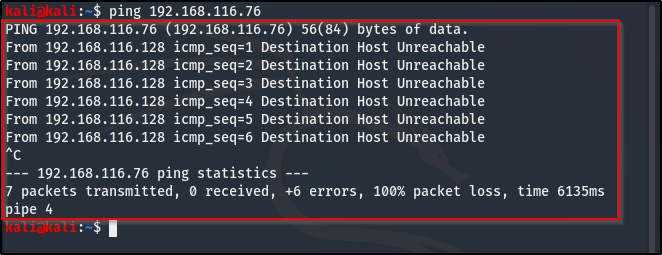
Here is what an invalid ping response looks like, we get no response back:
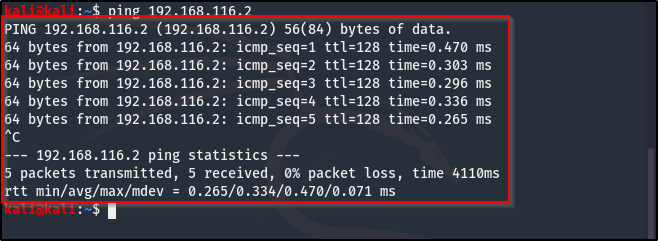
This is a valid ping response, we get a response of 64 bytes:
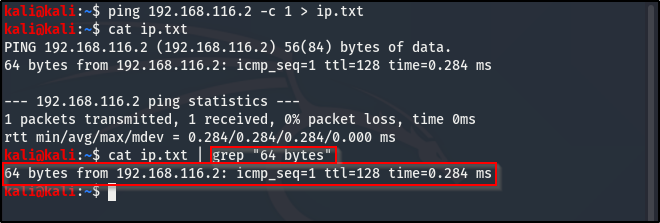
If we have multiple IP address to ping, that would be a lot of results, and we want to narrow it down to the IP of the machine that responded, grep helps with that. grep is going to grab any line with what you specify and since we’ve established that a valid ping gives back 64 bytes, that is what we definitely need to specify. like in the image below:
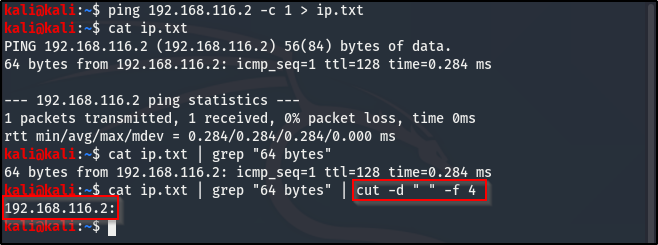
So, grep has narrowed down our needed IP to a line but we need just the IP. We are going to narrow it down a bit more by taking away the unwanted characters from this line using cut.
The command is cut -d ” ” -f 4
-d is a delimiter, it is what we will be cutting on, ” ” (a space). Which means, it starts counting from the first space of the line cutting until it gets to the specified field, which in our case is – f 4. Meaning, whatever set of characters occupy the 4th space is what’s going to be cut out and printed back.
Here;s what that messy explanation looks like:
If you paid a close attention to the result of the cut, you’d notice a character at the end of the IP that shouldn’t be there, the :, we can’t ping with the resulted IP address. So to make sure that our only output is the combination that makes up an IP, we use the tool tr. The command will be tr (translate) -d “:”, we’ve established what a delimiter is, so we’re giving the specification to trim out the : from the rest of the characters.
Result is as seen below:
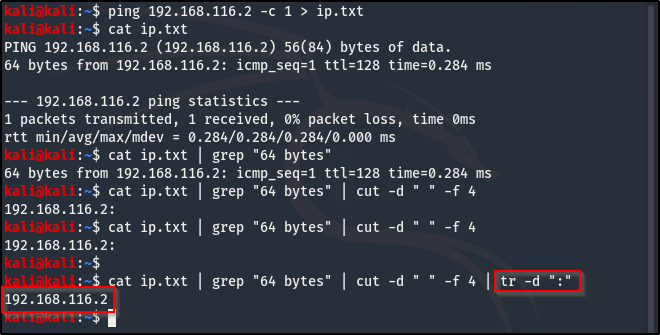
The column (:) has been removed.
Now, we are going to write these commands in a script, to run the above process at a go.

Breakdown and explanation of the above script:
• At the top is the hash-bang for Bash, which declares this as a bash script, the .sh also identifies that this is a bash script.
• The next line is a for loop, for the declared variable (the IP, which can be anything for you) in a sequence of 1-254, we’re going to do something (which is a ping in the next line). The loop is going to go through the IPs from 1 all the way to 254, and ping them.
• The fourth line should look familiar. It’s saying we want a ping with a count of 1 (ping -c 1). IP is also called here and the $1 is the user input (where the user puts in some information (IP to ping) then grep 64 bytes, cut -d 4 and tr.-d “:”. The added & at the end allows for threading (which is letting the process run through at once, instead of one IP at a time, which is what will happen without the &)
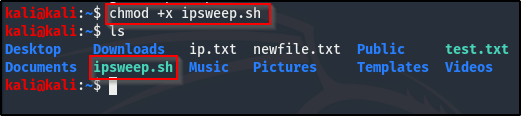
Save the script and change the mode, because it’s not executable by default. The color shows that the mode has changed and it’s now executable.
Here’s the code for changing mode:
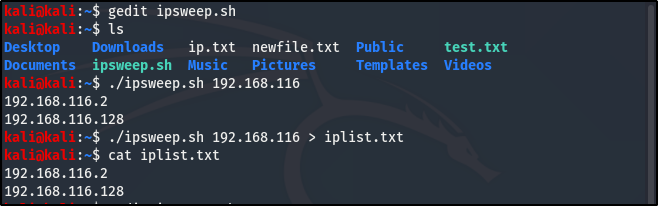
Here is a result after running the ipsweep.sh:
Now, we are going to add a little more to our script, ’cause we want to assume that someone else might use it too, and they have to understand the syntax. We know to input an IP when running the script, but for someone else who might run it to know, we would add a conditional statement (if), as follows:

The if statement makes sure the user inputs an IP and if they fail to do that, as shown in the left side of the above image, it gives them a prompt on what is missing and how to go about it.
The script will have to be modified some more, to specify that the required input should be 3 octet, but that is advanced scripting which we will cover later. For now, we are just focused on learning and understand the basic script.
The last thing is looping.
We’ve written our script but we can also do one line loops. If we had a file that contained a bunch of IP addresses and want to perform an nmap scan, instead of typing each command and IP one after the other, we can just use a one-liner for loop to scan through the entire list of IP addresses at once
Here is the commands: for ip in $(cat iplist.txt); do nmap -sS -p 80 -T4 $ip & done
Explanation: for the list of IP addresses in the iplist.txt file, do and nmap scan, still scan on port 80 and a speed of T4, $ip declares the IP address. The & lets it run multiple at one, as opposed to using the ; which lets it run one at a time, then done.
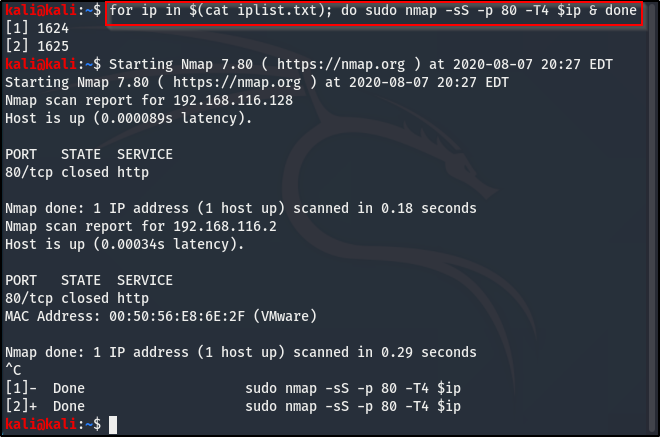
The above only scanned for 2 IP address, hopefully you got an idea of how one-liners can help speed up, time consuming processes.
In the next post, we’ll be diving into looping in Python, building more on the one line loops we’ve just learnt about and while loops too.
As always, Keep learning. Keep hacking. And don’t forget to breathe!

 Phoenix Information Security
One thought on “Scripting with Bash.”